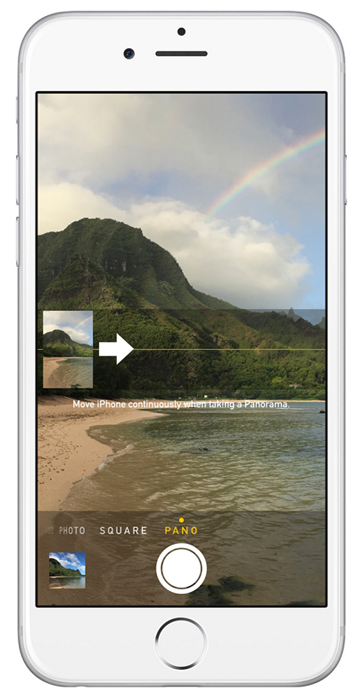
One of the more interesting features that came along with the iPhone 5 launch is the built-in Panorama option in iOS 6. Consisting of high quality photos stitched together on the fly, Apple's panoramic images come in at around 17 MB (with a resolution of 10,800 x 2332 pixels). Accessing panoramic mode is simple, just open the Camera and tap Options. Touch the grey Panorama button in the middle of the screen and a white arrow appears.
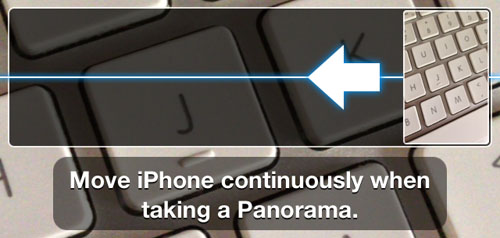
One useful tip comes into play before you start recording the panorama. Tapping the white arrow will change its direction, which allows the panorama to be recorded from either left to right, or right to left. Depending on how the scene is laid out, what the ambient lighting looks like, and your position, sometimes switching directions can result in a better image.